Inline with text
Useful for small illustrations that belong at a specific point in a sentence or paragraph.
Learn how to position pictures, wrap text around images, anchor photographs and create illustrated documents in a word processor.
Register your interestInline pictures behave like characters in a paragraph. Side wrapping allows text beside a picture, while above-and-below wrapping keeps text clear of its sides. Floating pictures can offer more layout freedom, depending on the editor.
A picture that moves with text follows its associated content as you edit. A picture fixed to a page is intended to stay in a particular page position. Choose based on whether the picture illustrates a passage or belongs to the page design.
Useful for small illustrations that belong at a specific point in a sentence or paragraph.
Useful for photographs in articles, travel diaries and newsletters. Keep the remaining text column wide enough to read comfortably.
Useful for wide photographs and illustrations that deserve their own horizontal space.
Useful for decorative elements that belong to a particular page design rather than a specific paragraph.
A wrapping picture occupies space that would otherwise be available for text. Moving or resizing it can change line lengths, paragraph heights and page breaks. With several pictures on a page, their combined positions can affect the available text area. Review the whole page rather than just the paragraph nearest the image.
Choose the anchor and wrapping mode first, then resize the picture while preserving its proportions. Use rulers or numerical position controls where available. Check the relationship between the picture, page margins and nearby text, especially after changing the paper size.
Leave a gap between the picture and text. Avoid narrow strips of text beside large pictures. Preserve the image's aspect ratio when resizing unless distortion is intentional.
Adding paragraphs or moving pictures can change pagination. Review adjacent pages and check that captions remain near their images. Inspect the final PDF or print preview.
WrightType is being developed with interactive picture movement, resizing, rotation and text wrapping. Its Creative Desktop explores the idea of treating the space around a document as part of the creative workspace. Watch the demonstration below to see the developing editor.
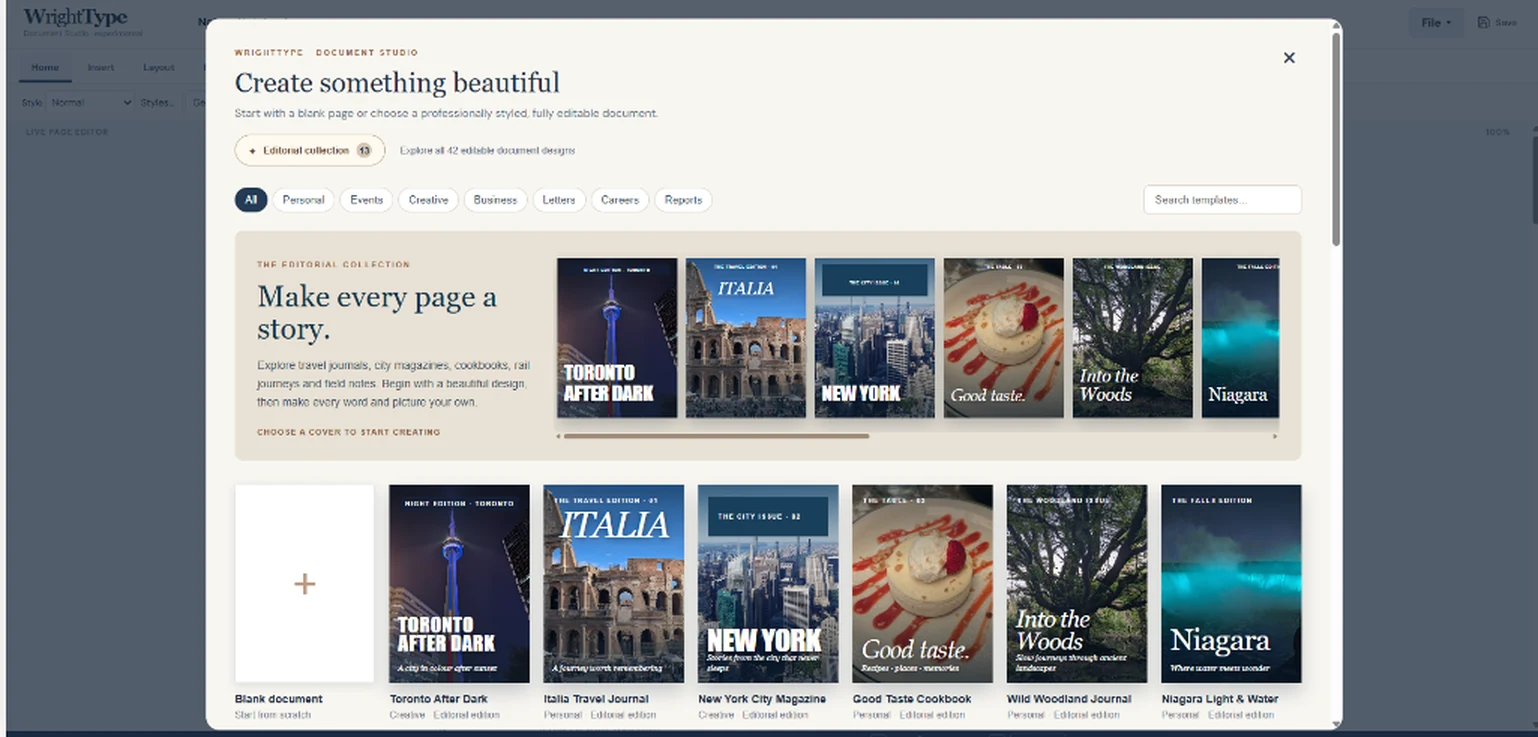
Watch the editor demonstration
For more layout ideas, compare word processing and desktop publishing.
WrightType is in active development. Purchases are not yet available; features and platform availability are subject to final release testing.
Discover WrightType's approach to word processing with picture positioning and text wrapping.